- Sales Orders-> Master Files-> Quote Lost Reasons/Competitors-> Quote Lost Reasons: This new program will allow you to maintain a list of reasons that quotes are lost, such as 'Availability', 'Price', and 'Reputation'. NOTE: When one or more reasons are on file, new functionality is automatically turned on.
Sales Orders-> Master Files-> Quote Lost Reasons/Competitors-> Quote Lost Competitors: This new program will allow you to maintain a list of competitors that quotes are lost to.
Sales Orders-> Processing-> Enter Orders/Quotes: You can now add lost quote line information to any line of a quote. When deleting a line from a quote, the user will be prompted for lost quote line information.
Miscellaneous Functions-> Setup/Miscellaneous-> Feature Initialization-> Feature #1872: Do you want to support branch ownership of customers?
Miscellaneous Functions-> Setup/Miscellaneous-> Feature Initialization-> Feature #1873: Do you want to require the Customer ID for new customer accounts to be numeric?
Miscellaneous Functions-> Master Files-> Branch Maintenance: If feature #1872 and feature #1873 described above are turned on, a new prompt labeled “Numeric Customer ID Range” will be displayed. Each branch must have its own, unique numeric customer ID range.
Accounts Receivable-> Master Files-> Customer Maintenance: If feature #1872 and feature #1873 described above are turned on, when adding a customer, the user will not be prompted for “Customer ID”. Instead, the user will be prompted for the branch that “owns” the customer account. (Branch ownership is optional.) If a branch is associated with the customer, the next available numeric customer ID for the specified branch will be automatically assigned to the customer.
Accounts Receivable-> Master Files-> Customer Maintenance: If branch ownership is enabled via feature #1872, customers can be associated with a branch.
Inventory Control-> Processing-> Inventory Processing: When processing a random-length tag associated with an item that is stocked in pounds, the user will be asked if he or she would like to process the tag into single-piece, fixed-length tags. If the user responds affirmatively, he or she will be prompted for the length of each tag.
Miscellaneous Functions-> Setup/Miscellaneous-> Feature Initialization-> Feature #1874: Use this feature to enable/disable lost quote lines functionality.
General Ledger-> Reports/Inquiries-> Tieout Reports-> Inventory Tieouts Report: We have removed the requirement that all categories must have a unique General Ledger asset account or share the same asset account.
Inventory Control-> Master Files-> Category Maintenance: If 1) there is more than one active (not retired) warehouse on file or 2) there is one active warehouse on file and a General Ledger asset account is associated with that warehouse, this program will no longer allow you to associate a General Ledger asset account with the category.
Sales Orders-> Processing-> Invoicing Procedures-> Process Orders for Shipment-> Create Packing List: For a sales order line associated with a tagged length item stocked in pounds and a random-length standard size, you can now press Shift-F6 key to access a new screen called “Stage Multiple Tags”. A list of all available tags that fall within the length range of the standard size will be displayed, and you can select one or more tags to stage to the packing list line.
Login Screen: When logging in, if the user’s default warehouse is retired, he or she will be prohibited from logging in. To correct this, your system administrator will need to change the user’s default warehouse via the User Maintenance program.
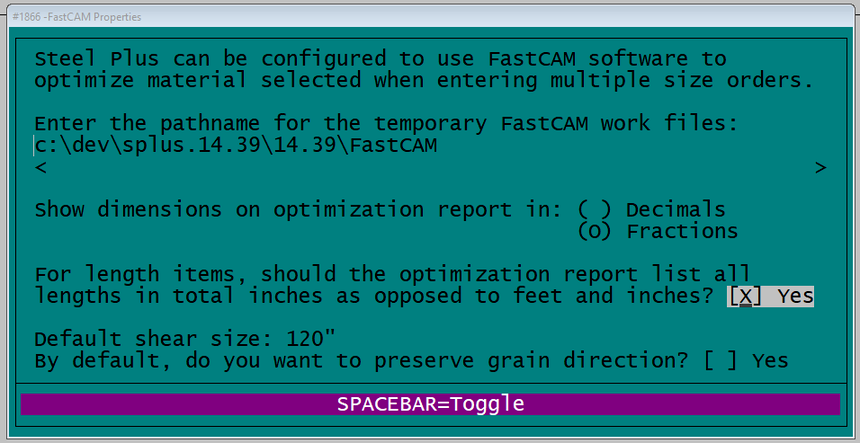
Miscellaneous Functions-> Setup/Miscellaneous-> Feature Initialization-> Feature #1866 (FastCAM Properties): We have added a new prompt that controls the display format of length items. This prompt takes take precedence over feature #1806.
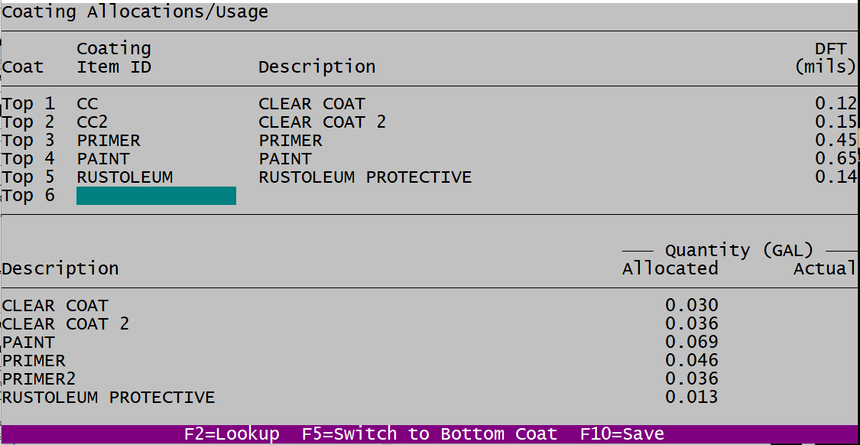
Inventory Control-> Processing-> Work Orders-> Coating Work Orders-> Enter Coating Work Orders-> Coating Allocations/Usage : The number of coats allowed for both the top and bottom surface has been increased to six (6). You may use the F5 key to switch between the top and bottom surface.
Inventory Control-> Master Files-> Item Maintenance: The maximum size of the brief item description has been expanded to 40 characters throughout the system.
Inventory Control-> Master Files-> Item Maintenance: You can now define/store brief and full item descriptions in both English and French.
Miscellaneous Functions-> Master Files-> Branches-> Branch Maintenance: See below. A new prompt has been added that will allow you to indicate that the branch is located in Quebec.

Sales Orders-> Processing-> Enter Orders/Quotes: The item descriptions that flow into sales transactions from the item master file can now be edited as needed. The four (4) item descriptions are: Full English (up to 50 characters), Brief English (up to 40 characters), Full French, and Brief French.
Sales Orders-> Processing-> Enter Orders/Quotes: The language that each sales document will be printed in can be viewed/edited on the screen shown below which is accessed by entering “L” at the “Document” prompt.
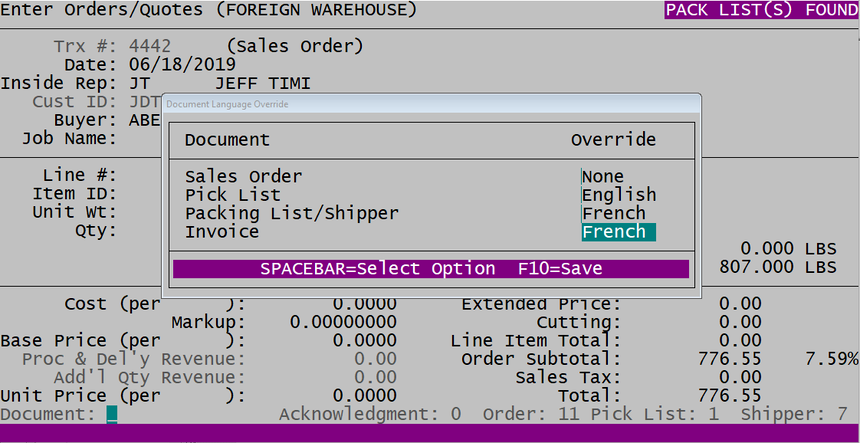
The guidelines that Steel Plus uses to determine the default language for sales and purchasing documents are listed below.
Sales Documents
- Acknowledgement: If a buyer is associated with the sales order and he or she is in Quebec, default to French. If a buyer is associated with the sales order and he or she is not in Quebec, default to English. If a buyer is not associated with the sales order and the customer’s purchasing department is in Quebec, default to French. If a buyer is not associated with the sales order and the customer’s purchasing department is not in Quebec, default to English.
- Sales Order configured as an external document: If a buyer is associated with the sales order and he or she is in Quebec, default to French. If a buyer is associated with the sales order and he or she is not in Quebec, default to English. If a buyer is not associated with the sales order and the customer’s Purchasing department is in Quebec, default to French. If a buyer is not associated with the sales order and the customer’s purchasing department is not in Quebec, default to English.
- Sales Order configured as an internal document: If the branch associated with the sales order is in Quebec, default to French. If the branch associated with the sales order is not in Quebec, default to English.
- Picking List: If the warehouse associated with the sales order is in Quebec, default to French. If the warehouse associated with the sales order is not in Quebec, default to English.
- Packing List/Shipper for will-call orders: If the warehouse associated with the sales order is in Quebec, default to French. If the warehouse associated with the sales order is not in Quebec, default to English.
- Packing List/Shipper for delivered orders: If the delivery address is in Quebec, default to French. If the delivery address is not in Quebec, default to English.
- Invoice: If the customer’s Accounts Payable department is in Quebec, default to French. If the customer’s Accounts Payable department is not in Quebec, default to English.
Purchasing Documents
- Purchase Order: If the branch associated with the purchase order is in Quebec, default to French. If the branch associated with the purchase order is not in Quebec, default to English.
- Internal Purchase Order: If the warehouse associated with the purchase order is in Quebec, default to French. If the warehouse associated with the purchase order is not in Quebec, default to English.
- Pick-Up Order: If the warehouse associated with the purchase order is in Quebec, default to French. If the warehouse associated with the purchase order is not in Quebec, default to English.
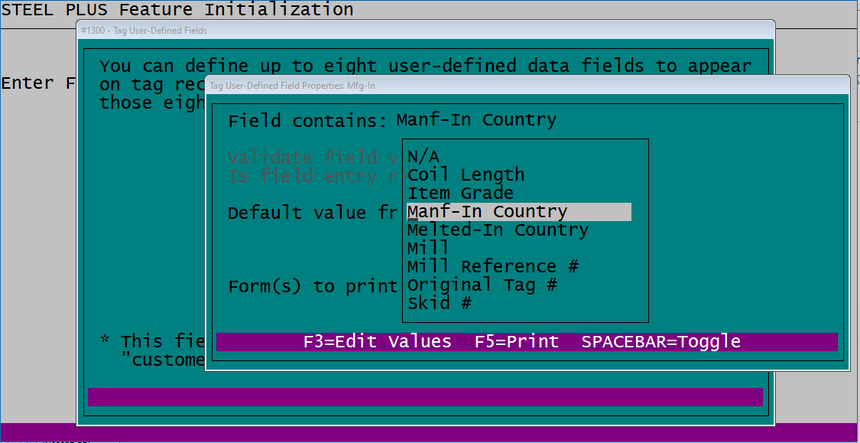
Miscellaneous Functions-> Setup/Miscellaneous-> Feature Initialization-> Feature #1300-> F3=Change Properties: See below. Two of the “Field contains” options have been relabeled. “Material Country” has been relabeled “Melted-In Country” and “Production Country” has been relabeled “Manf-In Country”.
Inventory Control -> Processing -> Work Orders -> Slitting Orders. ‘Print Stock Labels’ now uses the “Stock Label’ format set on the Category Maintenance screen for the coil item ID associated with the Slitting Order. Note, if you were previously using the 4” x 6” slitting stock tag format, you should go to Category Maintenance associated with this coil item ID and verify that the ‘Stock Label’ is set to 4” x 6”. Please note that the standard 4” x 6” stock label format is somewhat different than the now obsolete slitting coil 4” x 6” stock label format.
When adding/editing ‘Actions’ for parent tags in ‘Production Information’, slit tags are now automatically created or adjusted as needed, starting at the ‘Next tag #’ set in Warehouse Maintenance.
The Shift-F9=Production Recap has been moved to the Pull Info screen, up one level from where it was on the Production Info screen. Production Recap now includes a summary of both Shipping and Restock actions.
Slit tag numbers are now automatically assigned using the ‘Next Tag Number’ located on the Warehouse Maintenance screen.
Inventory Control -> Reports/Inquiries -> Inventory Inquiry. Area-type items now show Available LBS on each standard size line and Available Pieces (when applicable) in the footer section of the screen. All standard sizes are now displayed, whether or not they have quantity on-hand or available.
Inventory Control -> Master Files -> Items -> Item Maintenance. The F6 Item Inquiries Menu is now available while in ‘change’ mode.
Inventory Control -> Master Files -> Chemistries -> Chemistries Report. The Chemistries Report now includes all ‘notes’ associated with each Heat #.
Sales Orders -> Reports/Inquiries -> Sales Order/Quote Reports -> Sales Order Lists -> Trip Report. The Trip Report now shows the ship date of each sales order line. This date comes from the sales order if the date is being tracked at the order level, or the sales order line if the date is being tracked at the individual line level.
Sales Orders-> Master Files-> Quote Lost Reasons/Competitors-> Quote Lost Competitors: This new program will allow you to maintain a list of competitors that quotes are lost to.
Sales Orders-> Processing-> Enter Orders/Quotes: You can now add lost quote line information to any line of a quote. When deleting a line from a quote, the user will be prompted for lost quote line information.
Miscellaneous Functions-> Setup/Miscellaneous-> Feature Initialization-> Feature #1872: Do you want to support branch ownership of customers?
Miscellaneous Functions-> Setup/Miscellaneous-> Feature Initialization-> Feature #1873: Do you want to require the Customer ID for new customer accounts to be numeric?
Miscellaneous Functions-> Master Files-> Branch Maintenance: If feature #1872 and feature #1873 described above are turned on, a new prompt labeled “Numeric Customer ID Range” will be displayed. Each branch must have its own, unique numeric customer ID range.
Accounts Receivable-> Master Files-> Customer Maintenance: If feature #1872 and feature #1873 described above are turned on, when adding a customer, the user will not be prompted for “Customer ID”. Instead, the user will be prompted for the branch that “owns” the customer account. (Branch ownership is optional.) If a branch is associated with the customer, the next available numeric customer ID for the specified branch will be automatically assigned to the customer.
Accounts Receivable-> Master Files-> Customer Maintenance: If branch ownership is enabled via feature #1872, customers can be associated with a branch.
Inventory Control-> Processing-> Inventory Processing: When processing a random-length tag associated with an item that is stocked in pounds, the user will be asked if he or she would like to process the tag into single-piece, fixed-length tags. If the user responds affirmatively, he or she will be prompted for the length of each tag.
Miscellaneous Functions-> Setup/Miscellaneous-> Feature Initialization-> Feature #1874: Use this feature to enable/disable lost quote lines functionality.
General Ledger-> Reports/Inquiries-> Tieout Reports-> Inventory Tieouts Report: We have removed the requirement that all categories must have a unique General Ledger asset account or share the same asset account.
Inventory Control-> Master Files-> Category Maintenance: If 1) there is more than one active (not retired) warehouse on file or 2) there is one active warehouse on file and a General Ledger asset account is associated with that warehouse, this program will no longer allow you to associate a General Ledger asset account with the category.
Sales Orders-> Processing-> Invoicing Procedures-> Process Orders for Shipment-> Create Packing List: For a sales order line associated with a tagged length item stocked in pounds and a random-length standard size, you can now press Shift-F6 key to access a new screen called “Stage Multiple Tags”. A list of all available tags that fall within the length range of the standard size will be displayed, and you can select one or more tags to stage to the packing list line.
Login Screen: When logging in, if the user’s default warehouse is retired, he or she will be prohibited from logging in. To correct this, your system administrator will need to change the user’s default warehouse via the User Maintenance program.
Miscellaneous Functions-> Setup/Miscellaneous-> Feature Initialization-> Feature #1866 (FastCAM Properties): We have added a new prompt that controls the display format of length items. This prompt takes take precedence over feature #1806.
Inventory Control-> Processing-> Work Orders-> Coating Work Orders-> Enter Coating Work Orders-> Coating Allocations/Usage
Inventory Control-> Master Files-> Item Maintenance: The maximum size of the brief item description has been expanded to 40 characters throughout the system.
Inventory Control-> Master Files-> Item Maintenance: You can now define/store brief and full item descriptions in both English and French.
Miscellaneous Functions-> Master Files-> Branches-> Branch Maintenance: See below. A new prompt has been added that will allow you to indicate that the branch is located in Quebec.
Sales Orders-> Processing-> Enter Orders/Quotes: The item descriptions that flow into sales transactions from the item master file can now be edited as needed. The four (4) item descriptions are: Full English (up to 50 characters), Brief English (up to 40 characters), Full French, and Brief French.
Sales Orders-> Processing-> Enter Orders/Quotes: The language that each sales document will be printed in can be viewed/edited on the screen shown below which is accessed by entering “L” at the “Document” prompt.
The guidelines that Steel Plus uses to determine the default language for sales and purchasing documents are listed below.
Sales Documents
- Acknowledgement: If a buyer is associated with the sales order and he or she is in Quebec, default to French. If a buyer is associated with the sales order and he or she is not in Quebec, default to English. If a buyer is not associated with the sales order and the customer’s purchasing department is in Quebec, default to French. If a buyer is not associated with the sales order and the customer’s purchasing department is not in Quebec, default to English.
- Sales Order configured as an external document: If a buyer is associated with the sales order and he or she is in Quebec, default to French. If a buyer is associated with the sales order and he or she is not in Quebec, default to English. If a buyer is not associated with the sales order and the customer’s Purchasing department is in Quebec, default to French. If a buyer is not associated with the sales order and the customer’s purchasing department is not in Quebec, default to English.
- Sales Order configured as an internal document: If the branch associated with the sales order is in Quebec, default to French. If the branch associated with the sales order is not in Quebec, default to English.
- Picking List: If the warehouse associated with the sales order is in Quebec, default to French. If the warehouse associated with the sales order is not in Quebec, default to English.
- Packing List/Shipper for will-call orders: If the warehouse associated with the sales order is in Quebec, default to French. If the warehouse associated with the sales order is not in Quebec, default to English.
- Packing List/Shipper for delivered orders: If the delivery address is in Quebec, default to French. If the delivery address is not in Quebec, default to English.
- Invoice: If the customer’s Accounts Payable department is in Quebec, default to French. If the customer’s Accounts Payable department is not in Quebec, default to English.
Purchasing Documents
- Purchase Order: If the branch associated with the purchase order is in Quebec, default to French. If the branch associated with the purchase order is not in Quebec, default to English.
- Internal Purchase Order: If the warehouse associated with the purchase order is in Quebec, default to French. If the warehouse associated with the purchase order is not in Quebec, default to English.
- Pick-Up Order: If the warehouse associated with the purchase order is in Quebec, default to French. If the warehouse associated with the purchase order is not in Quebec, default to English.
Miscellaneous Functions-> Setup/Miscellaneous-> Feature Initialization-> Feature #1300-> F3=Change Properties: See below. Two of the “Field contains” options have been relabeled. “Material Country” has been relabeled “Melted-In Country” and “Production Country” has been relabeled “Manf-In Country”.
Inventory Control -> Processing -> Work Orders -> Slitting Orders. ‘Print Stock Labels’ now uses the “Stock Label’ format set on the Category Maintenance screen for the coil item ID associated with the Slitting Order. Note, if you were previously using the 4” x 6” slitting stock tag format, you should go to Category Maintenance associated with this coil item ID and verify that the ‘Stock Label’ is set to 4” x 6”. Please note that the standard 4” x 6” stock label format is somewhat different than the now obsolete slitting coil 4” x 6” stock label format.
When adding/editing ‘Actions’ for parent tags in ‘Production Information’, slit tags are now automatically created or adjusted as needed, starting at the ‘Next tag #’ set in Warehouse Maintenance.
The Shift-F9=Production Recap has been moved to the Pull Info screen, up one level from where it was on the Production Info screen. Production Recap now includes a summary of both Shipping and Restock actions.
Slit tag numbers are now automatically assigned using the ‘Next Tag Number’ located on the Warehouse Maintenance screen.
Inventory Control -> Reports/Inquiries -> Inventory Inquiry. Area-type items now show Available LBS on each standard size line and Available Pieces (when applicable) in the footer section of the screen. All standard sizes are now displayed, whether or not they have quantity on-hand or available.
Inventory Control -> Master Files -> Items -> Item Maintenance. The F6 Item Inquiries Menu is now available while in ‘change’ mode.
Inventory Control -> Master Files -> Chemistries -> Chemistries Report. The Chemistries Report now includes all ‘notes’ associated with each Heat #.
Sales Orders -> Reports/Inquiries -> Sales Order/Quote Reports -> Sales Order Lists -> Trip Report. The Trip Report now shows the ship date of each sales order line. This date comes from the sales order if the date is being tracked at the order level, or the sales order line if the date is being tracked at the individual line level.